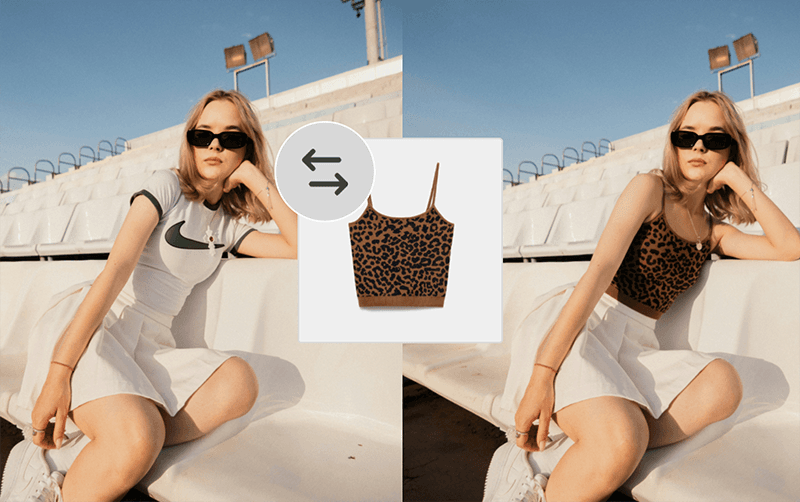
How to Use Reference Images with Nano Banana in Photoshop
While Photoshop's native Generative Fill with Nano Banana (Gemini 2.5 Flash) is powerful, it doesn't support reference images by default. This limitation makes it challenging to match specific styles, textures, or objects from other images. Fortunately, plugins like Pablo for Photoshop unlock this capability, allowing you to use reference images directly in your Nano Banana workflow.
With reference images, you can instruct the AI to match clothing items, replicate textures, adopt color palettes, or mirror compositional elements from another photo. This tutorial shows you how to set up Pablo and use reference images effectively.
Requirements:
- Photoshop CC (any recent version)
- Pablo plugin installed
- Active Pablo account
Step-by-step instructions
Download and Install Pablo
Visit trypablo.com and download the Pablo plugin for Photoshop.
Follow the installation instructions for your operating system (Windows or Mac).
Authenticate with Pablo
Open the Pablo panel in Photoshop (Plugins → Pablo) if it hasn't opened automatically.
Click 'Authenticate' when prompted.
Log in with your Pablo account credentials, or create a new account if you don't have one.
Once authenticated, you'll see the Pablo interface with access to Nano Banana and other AI models.
Prepare Your Image and Selection
Open the image you want to edit in Photoshop.
Use selection tools (Lasso, Object Selection, Magic Wand) to isolate the area you want to modify.
For example, if replacing a shirt, select just the shirt area using the Object Selection Tool.
Refine your selection edges if needed using Select → Select and Mask.
Add a Reference Image
In the Pablo panel, look for the 'Reference Image' section.
Click the 'Browse' button next to 'Reference Image'.
Navigate to and select the image containing the item, texture, or style you want to reference.
The reference image will appear as a thumbnail in the Pablo panel, confirming it's loaded.
Write Your Prompt
In the prompt field, clearly describe what you want to change and how to use the reference image.
Example: 'Replace the woman's shirt with the shirt in the reference image'
Example: 'Change the background to match the lighting and atmosphere from the reference photo'
Be specific about what elements from the reference should be applied: color, pattern, style, texture, or overall look.
Generate with Nano Banana
Ensure Nano Banana (Gemini 2.5 Flash) is selected as your AI model in the Pablo panel.
Review your selection, reference image, and prompt one final time.
Click the 'Generate' button to process your request.
Review and Iterate
Examine the generated result in your Photoshop canvas.
If the result isn't perfect, refine your prompt with more specific instructions about the reference.
Try adjusting your selection boundaries if edges look unnatural.
You can generate multiple variations by clicking 'Generate' again with the same or modified prompt.
Use layer masks or adjustment layers to blend the generated content seamlessly with the original image.
